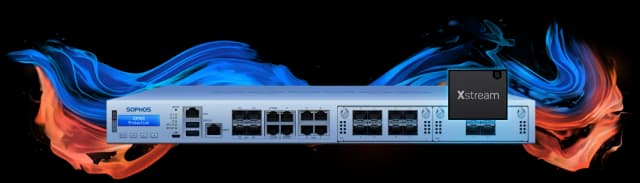
Replacing a perimeter firewall is one of the most consequential infrastructure changes an IT team can make. When done incorrectly, the result is a network outage, broken VPN tunnels, or security gaps during the cutover window. When done correctly, the migration is completed during a planned maintenance window with zero user impact and immediate improvement in security posture.
This guide covers the complete migration process for replacing a Fortinet FortiGate, SonicWall, or Cisco ASA with a Sophos XGS Firewall in India — including configuration conversion using Sophos Migration Center, Zero Touch Deployment, hardware cutover steps, and post-migration validation.
Why Indian Organisations Are Migrating to Sophos XGS
Three scenarios drive most firewall migrations to Sophos XGS in India:
Hardware end-of-life. Many Indian organisations deployed Cisco ASA 5505/5510, SonicWall TZ 300/400, or Fortinet FortiGate 30–60 series appliances 5–7 years ago. These devices are at or past end-of-support — no firmware updates, no security patches, no TAC support. Continuing to run them represents a known, unpatched attack surface.
Synchronized Security adoption. Organisations that already run Sophos Intercept X endpoint protection and want to activate Security Heartbeat — where a compromised endpoint automatically triggers the XGS Firewall to isolate it from the network — need an XGS Firewall to complete the Synchronized Security loop. This is a capability no other vendor delivers natively.
Consolidating to a single vendor for central management. Organisations managing endpoint, email, and firewall security across multiple vendors move to Sophos XGS to consolidate everything under Sophos Central — one cloud console for firewall, endpoint, and email security. This reduces management overhead significantly for IT-lean Indian organisations.
Pre-Migration Planning — What to Document Before You Start
Migration planning begins with a thorough documentation of your existing environment. Skipping this step is the most common cause of post-cutover issues.
Network Architecture Documentation
- WAN configuration: Static IP, DHCP, PPPoE, or dual-WAN? ISP details, gateway IP, subnet, DNS servers
- LAN topology: Number of interfaces, VLANs, subnet ranges, DHCP scope configuration
- DMZ / server zones: IP addresses of publicly accessible servers, port forwarding rules, NAT rules
- Routing: Static routes, any dynamic routing (OSPF, BGP)
- SD-WAN / load balancing: If you use SD-WAN or WAN load balancing on your existing firewall
Security Policy Documentation
- Firewall rules: Export all rules — source, destination, service, action — in order of rule priority
- Application control policies: Categories blocked, specific applications allowed or denied
- Web filtering policies: URL categories, HTTPS inspection settings, exception lists
- IPS policies: Enabled signatures, exceptions, custom signatures
- SSL inspection: Enabled or disabled, trusted CA certificates
VPN Configuration
- Site-to-site IPsec VPNs: Remote endpoint IPs, pre-shared keys (PSKs) or certificate authorities, phase 1 and phase 2 parameters (IKE version, encryption, hash, DH group, SA lifetimes)
- Remote access VPN: Protocol (SSL/TLS, IPsec), authentication method, address pool, split tunneling configuration, client software
- Number of VPN clients: Licences required on the new appliance
Service Dependencies
- LDAP/Active Directory integration: DC IP, bind account, OU structure for user-based policies
- Radius/TACACS authentication: If used for VPN or admin authentication
- Syslog / SIEM: Logging destination IP and port
Export this documentation to a spreadsheet. This is your rollback reference and your Sophos configuration template.
Sophos Migration Center — Automated Configuration Conversion
Sophos provides a free web-based tool called Sophos Migration Center that converts Fortinet FortiGate, SonicWall, and Cisco ASA configurations into Sophos XGS-compatible format. This eliminates the need to re-enter hundreds of firewall rules manually.
Supported Source Platforms
| Source Platform | Export Format |
|---|---|
| Fortinet FortiGate | .conf file (full configuration export) |
| SonicWall (Gen 6 / Gen 7) | .exp configuration export file |
| Cisco ASA | show running-config text output |
| Check Point | SmartConsole policy export |
Step 1 — Export Your Existing Firewall Configuration
Fortinet FortiGate:
- Log in to the FortiGate management interface
- Navigate to Dashboard → System Information → Configuration → Backup
- Select Local PC as destination and click Backup
- Alternatively, via CLI:
execute backup config ftp <ftp-server> <filename>orexecute backup config tftp <filename> <tftp-server> - The export is a
.conftext file — keep this file securely as it contains PSKs and credential hashes
SonicWall:
- Navigate to Manage → Updates → Export Settings
- Click Export — downloads a
.expfile - The file is encrypted with your admin password — note this password for the Migration Center import
Cisco ASA:
- SSH to the ASA management interface
- Run:
show running-configand capture the full text output to a file - Save as a
.txtfile
Step 2 — Import into Sophos Migration Center
- Navigate to the Sophos Migration Center portal (available through Sophos Central partner portal — Cloudfy provides access)
- Click New Migration and select your source platform
- Upload the configuration file
- Migration Center parses the configuration and presents a conversion summary:
- Firewall rules converted
- Address objects created
- Service objects created
- VPN tunnels detected
- Items requiring manual review (flagged in orange or red)
Step 3 — Review and Resolve Flagged Items
Migration Center flags items it cannot directly convert. Common flagged items:
Custom application signatures. If your FortiGate uses custom AppCtrl signatures not in Sophos's signature database, these require manual recreation.
Vendor-specific features. Features unique to the source platform (FortiGate's FSSO, SonicWall's WAN Acceleration) have no direct Sophos equivalent and must be handled separately.
Certificate authorities. SSL inspection certificates used on the source firewall need to be re-imported into the XGS Firewall and redistributed to clients.
Advanced routing protocols. BGP and OSPF configuration may require manual adjustment after conversion.
Work through each flagged item before proceeding. The goal is a complete, validated Sophos configuration in Migration Center before touching any hardware.
Step 4 — Export the Sophos XGS Configuration
Once reviewed, Migration Center generates a Sophos-compatible configuration backup file. This file can be imported into a Sophos XGS device during initial setup, pre-loading the converted ruleset, objects, and VPN tunnels.
Sophos XGS Model Selection
Choosing the correct XGS model ensures you are not CPU-bottlenecked or over-provisioned. Key sizing factors for Indian deployments:
| Organisation Size | WAN Speed | Recommended Model |
|---|---|---|
| 10–25 users | Up to 100 Mbps | XGS 87 |
| 25–75 users | Up to 500 Mbps | XGS 116 / XGS 126 |
| 75–200 users | Up to 1 Gbps | XGS 216 / XGS 226 |
| 200–500 users | Up to 2.5 Gbps | XGS 316 / XGS 326 |
| 500+ users / multi-site | 2.5–10 Gbps | XGS 3100 / XGS 4300 / XGS 4500 |
Note: NGFW throughput (with IPS, application control, and web filtering active) is significantly lower than raw firewall throughput. Size to NGFW throughput, not the headline firewall number on the datasheet.
Sophos XGS bundles — Standard Protection (Base, Network, Web) or Xstream Protection (adds sandboxing, TLS inspection) — are available from Cloudfy with 1, 2, or 3-year subscription terms.
Zero Touch Deployment — Pre-Stage the XGS Before It Ships
Sophos XGS supports Zero Touch Deployment, which allows you to pre-configure the device entirely in Sophos Central before it physically arrives at the installation site. This is especially valuable for branch office deployments where a trained engineer cannot be on-site.
How Zero Touch Works
- Register the device in Sophos Central using the serial number (available on the device box or the Cloudfy licence delivery email)
- Apply a configuration in Sophos Central — either import the Migration Center configuration or build it from scratch in the cloud console
- Connect the XGS at the site — it needs only a WAN connection (DHCP or pre-configured static IP)
- XGS calls home to Sophos Central on first boot, downloads the configuration, and applies it automatically
- The firewall is operational with your full ruleset within minutes of physical connection
For primary site deployments (replacing the current head office firewall), Zero Touch is still useful — it allows you to pre-stage policies and test the configuration in a lab environment before the cutover window.
Migration Cutover — Step-by-Step
This is the critical window. Plan for a 2–4 hour maintenance window with network downtime expected during hardware swap.
Pre-Cutover Checklist (Complete 48 Hours Before)
- Sophos XGS physically on-site and tested on a lab connection
- Migration Center configuration imported and validated on the XGS
- All VPN tunnel parameters confirmed (IKE parameters must match on both sides)
- Sophos Central showing the XGS as registered and online
- Rollback plan documented: existing firewall is not decommissioned until new XGS is stable for 48 hours
Hour 0: Notify Users and Begin Window
Notify all affected users of the maintenance window start. Initiate network access blackout for end users (or plan the window for non-business hours).
Hour 0–1: Physical Hardware Swap
- Document all cable connections on the existing firewall before disconnecting — photograph or label each port
- Disconnect the existing firewall — WAN port, LAN ports, DMZ ports, power
- Connect the Sophos XGS in the same physical positions — WAN (port 1, typically), LAN segments to appropriate interfaces
- Power on the XGS
If using Zero Touch: the XGS downloads its configuration from Sophos Central automatically. Monitor the Sophos Central console to confirm the configuration is downloaded and applied.
If using manual configuration: connect a management PC to the XGS management port, navigate to the local admin interface (default: https://172.16.16.16:4444), and import the Migration Center configuration backup.
Hour 1–2: Interface and Routing Validation
- Confirm WAN interface is up — check ISP connectivity from the XGS admin console
- Confirm LAN interfaces are up — test pings from client devices
- Confirm DHCP is serving addresses to clients (if XGS is the DHCP server)
- Confirm DNS resolution from client devices
- Test internet browsing from a client PC — verify web filtering is active and logging
- Confirm default gateway for all clients points to the XGS LAN interface IP
Hour 2–3: VPN Tunnel Validation
For each site-to-site VPN tunnel:
- Initiate a ping from a device on one side to a device on the other
- Check the XGS IPsec status page — tunnels should show as Active with SA counts incrementing
- If a tunnel fails to establish: compare phase 1 and phase 2 parameters with the remote endpoint admin; XGS logs will show the specific IKE negotiation error
For SSL VPN / remote access:
- Test a connection from an external device using the Sophos Connect client or web portal
- Verify split tunneling is working correctly (only company traffic routed through VPN, or all traffic depending on policy)
Hour 3–4: Application Control and Web Filtering Validation
- Test a blocked application category — confirm the block page is served
- Test a blocked website category — confirm the block page is served
- Test an explicitly allowed application — confirm it passes without issue
- Check the IPS log — confirm IPS is active and logging events
- Test Synchronized Security (if Sophos Intercept X is deployed): verify Security Heartbeat status shows Green for client devices in the XGS console
Post-Migration Configuration — Items Not Covered by Migration Center
Several items require manual attention after Migration Center conversion:
SSL/TLS Inspection
Enable Xstream TLS Inspection on the XGS (requires Xstream Protection subscription):
- Generate or import a CA certificate for SSL inspection
- Deploy the CA certificate to client devices via Group Policy or MDM
- Enable TLS inspection rules for appropriate traffic categories
- Add bypass rules for banking sites, government portals, and software update servers (these should not be decrypted)
Sophos Central Reporting and Alerts
Configure alert policies in Sophos Central:
- Admin authentication failures
- IPS high-severity detections
- VPN tunnel state changes
- Firewall high CPU or memory utilisation
Security Heartbeat (Synchronized Security)
If Sophos Intercept X is deployed:
- In Sophos Central → Firewall → your XGS device → Synchronized Security
- Enable Security Heartbeat
- Configure the network isolation policy — define what happens when an endpoint sends a red heartbeat (compromised device):
- Restrict to Sophos Central communication only
- Block all network access until remediated
This is the primary reason most Indian organisations migrate from another vendor to Sophos XGS: no other vendor delivers this automated isolation capability natively.
Post-Migration Validation Checklist
Complete these checks 24–48 hours after cutover:
- All client devices have internet access
- All VPN tunnels are stable (no phase 2 renegotiation failures in logs)
- Application control is logging and enforcing
- Web filtering is logging and enforcing
- IPS is active and logging events
- Sophos Central shows the XGS as Healthy
- Syslog / SIEM is receiving firewall logs
- Active Directory authentication working (if configured)
- All critical business applications (ERP, CRM, cloud applications) accessible
- Security Heartbeat showing green for all Sophos-protected endpoints
- Old firewall is powered off but retained for at least 7 days as fallback
Frequently Asked Questions
How long does a Sophos XGS migration take in practice? For a single-site deployment (head office, 50–200 users), allow 4–6 hours for the cutover window. Pre-work (configuration conversion, Zero Touch pre-staging, validation on a lab connection) takes 4–8 hours and is done before the cutover window. Multi-site deployments are typically staggered — one site per window.
Can we migrate from a SonicWall Gen 7 device to Sophos XGS? Yes. Sophos Migration Center supports SonicWall Gen 6 and Gen 7 configuration exports. SonicWall-specific features (WAN Acceleration, Deep Packet Inspection of SSL with SonicWall's proprietary engine) are handled as described in the flagged-items section. Most core firewall rules, NAT policies, and site-to-site VPN tunnels convert successfully.
What happens to our existing Fortinet FortiGuard subscriptions during migration? FortiGuard subscriptions are tied to the FortiGate hardware. They do not transfer to Sophos XGS. You need a Sophos XGS protection bundle subscription — Standard Protection or Xstream Protection — from the migration date. Cloudfy handles the subscription ordering in parallel with the hardware procurement so there is no gap in protection.
Can Zero Touch Deployment work with a static IP WAN configuration? Yes — if the ISP requires a static IP, configure the WAN IP, subnet, gateway, and DNS in the XGS device's initial configuration in Sophos Central before shipping to site. The device applies the static IP automatically on first boot.
Do we need to replace SSL VPN client software on all remote users' devices? If your existing firewall uses IPsec or SSL VPN and you are replacing it with Sophos XGS, remote users will need to install the Sophos Connect client for the XGS's SSL/TLS VPN. This is a free download from the XGS user portal. Plan a communication to remote users before cutover and provide them the new VPN configuration file.
How does Cloudfy handle the migration physically? For Agra and nearby locations, Cloudfy provides on-site deployment. For other Indian cities, we provide remote guidance with a local IT contact handling physical cable connections. We remain on a call or Teams session throughout the cutover window. Post-cutover monitoring is handled remotely via Sophos Central for 48 hours.
Planning a firewall refresh in India? Contact Cloudfy Systems — authorised Sophos partner with hands-on XGS migration experience across Indian SMBs and mid-market organisations. We handle configuration conversion, deployment, and post-migration validation.